
SMID SMID
Testimonials Tools England & Wales SMID-Gens SMID6 SMID Primary
Trust Overview Power BI
Parents' Evening Catch-Up (Students)
About Us Meet the Team
Contact
Log In
Power BI live sync

Your SMID data, ready in Power BI.

Connect Power BI to SMID through a secure API and turn the data your school or trust already uses into tailored dashboards, comparisons and reporting views.
Explore dashboard examples  ↓ How to add capture IDs  →
Secure API connection School and trust reporting No repeated CSV exports
Example SMID data displayed in a Power BI dashboard
Connected to SMID Refresh Power BI to retrieve the latest selected data
How the sync works

A secure connection, built around the data you choose.

Power BI sends authenticated requests to SMID whenever the dataset is refreshed. Your credentials confirm the connection, while Data Capture IDs control which capture-specific data is included.

  1. 01

    Enable API access

    SMID enables the integration for your school or trust and gives an administrator access to the Power BI setup area.

  2. 02

    Add secure credentials

    Generate an API key and secret, then add those values and your school code to the example Power BI file.

  3. 03

    Add your Data Capture IDs

    List the numeric IDs for every capture you want to report on. If an ID is not included, its capture-specific data will not appear.

  4. 04

    Refresh in Power BI

    Apply the query changes and refresh. Power BI retrieves the authorised SMID data and updates the connected report model.

What is possible

Explore an example Power BI report.

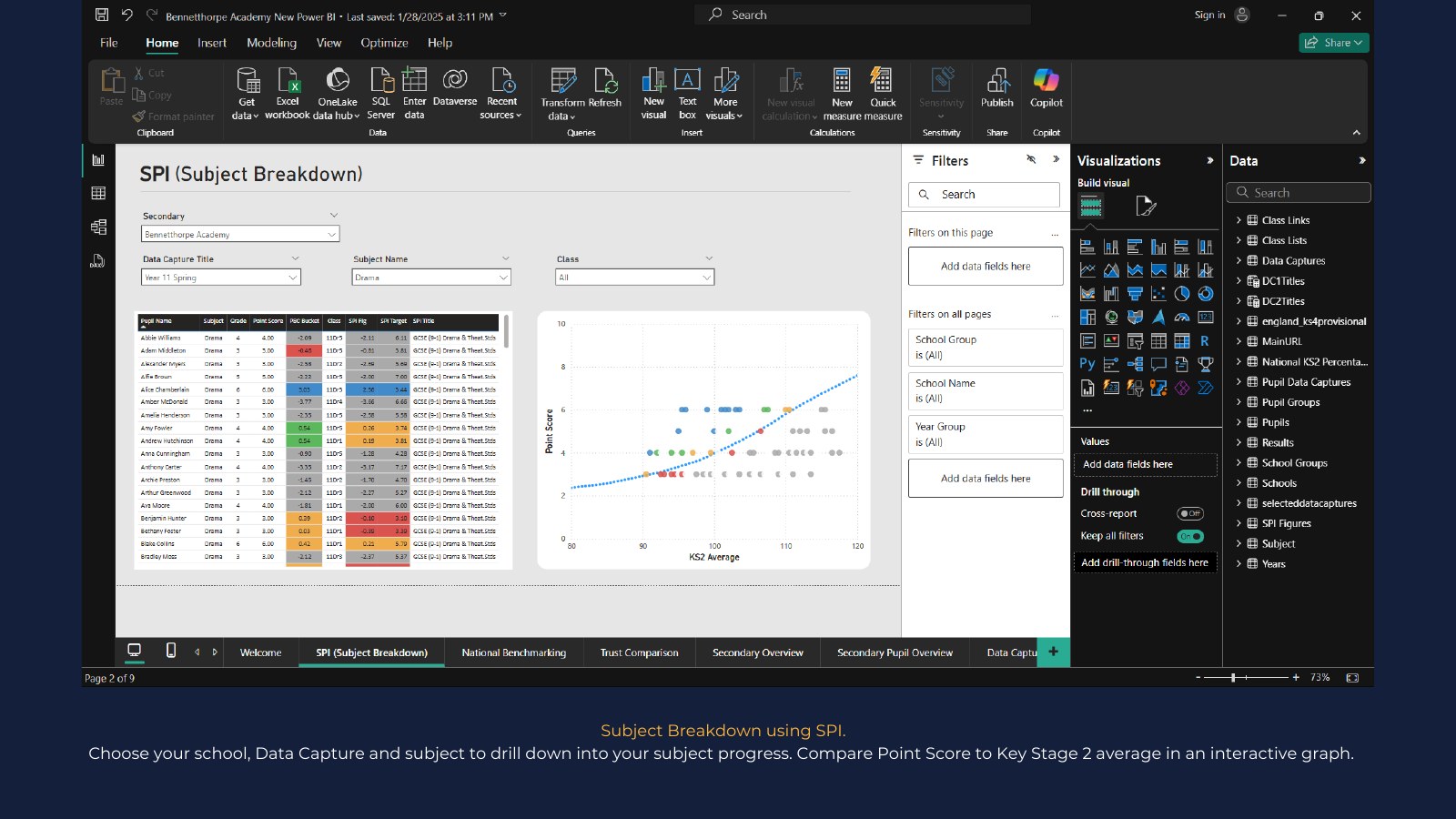
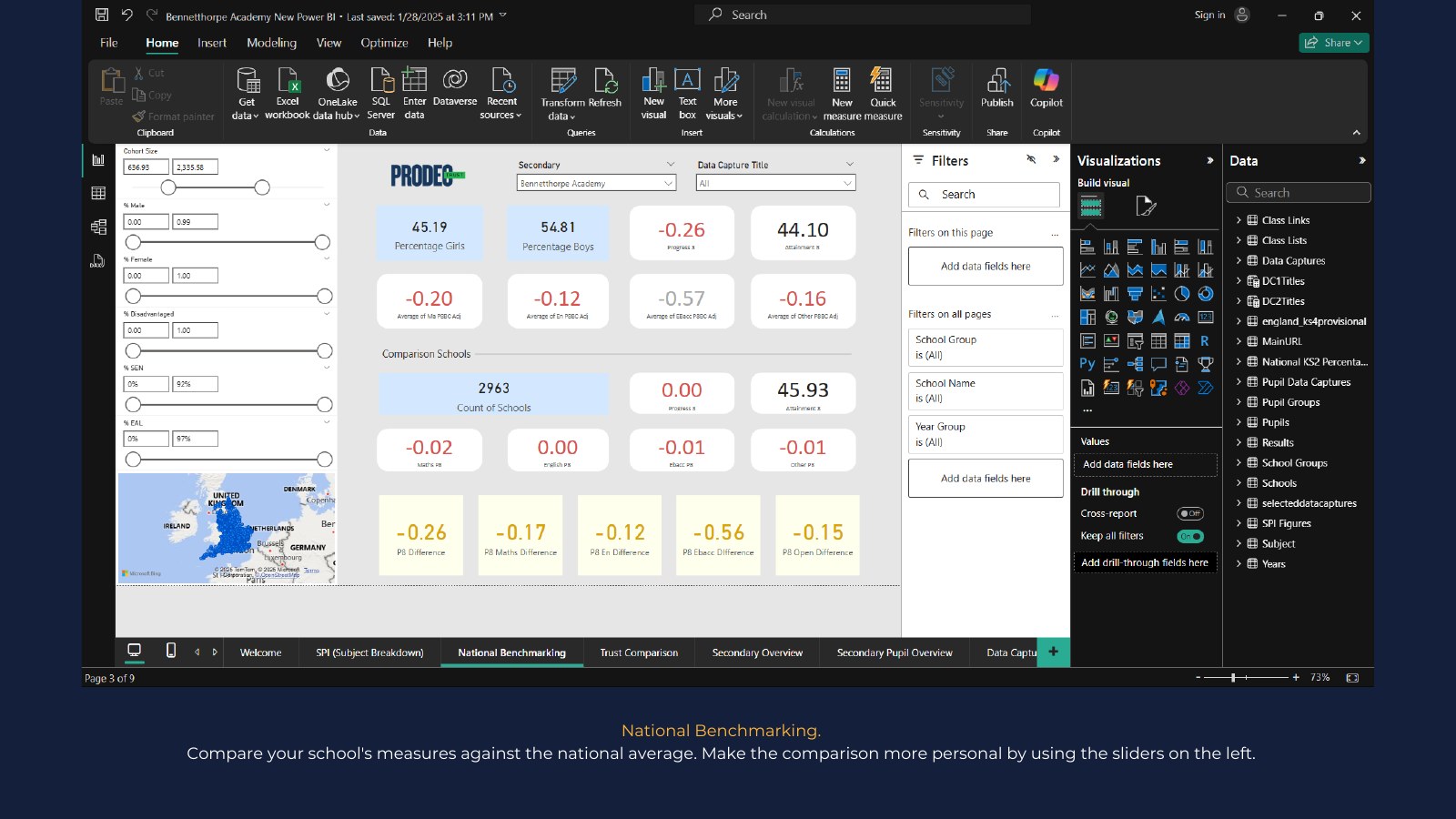
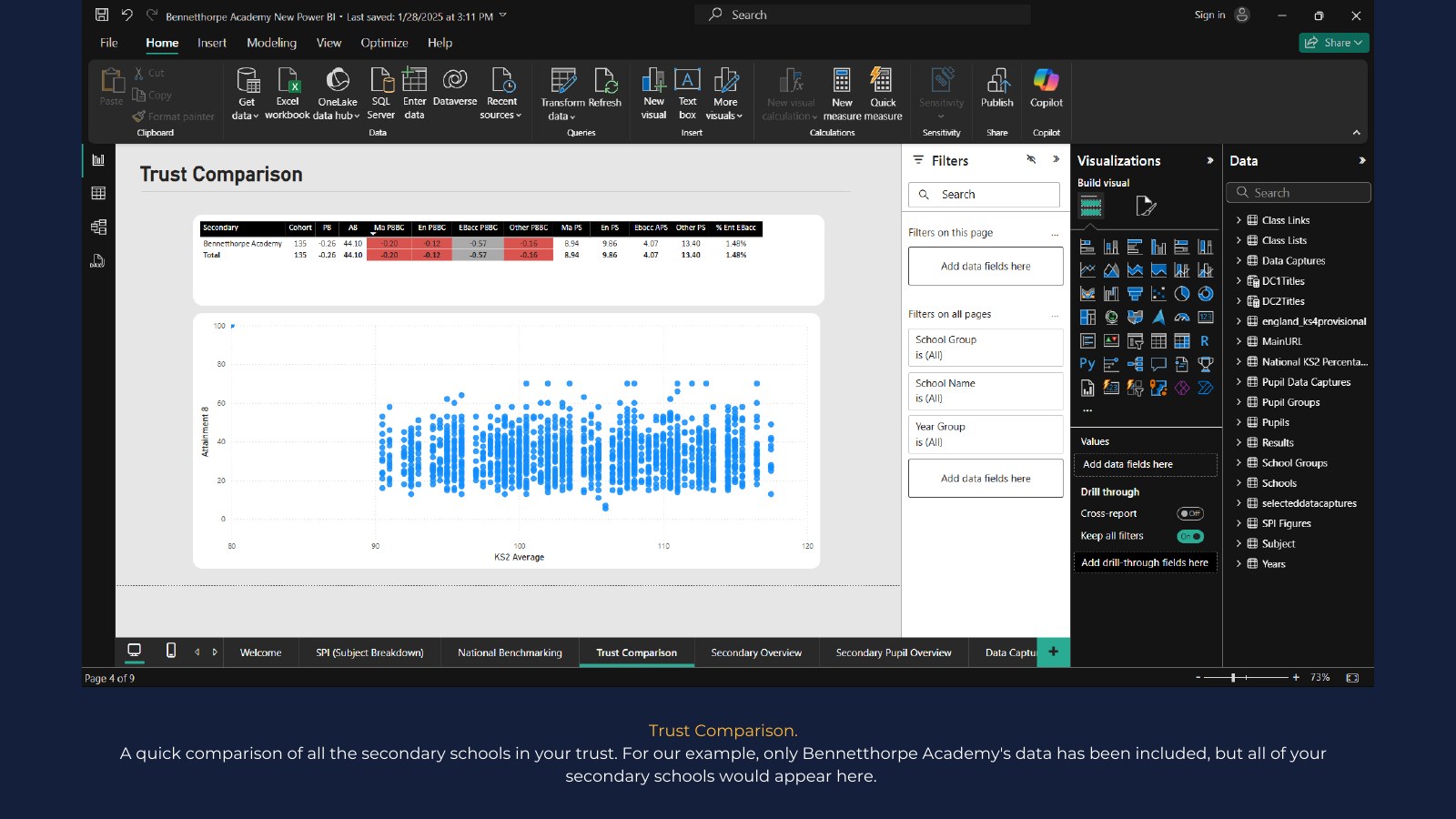
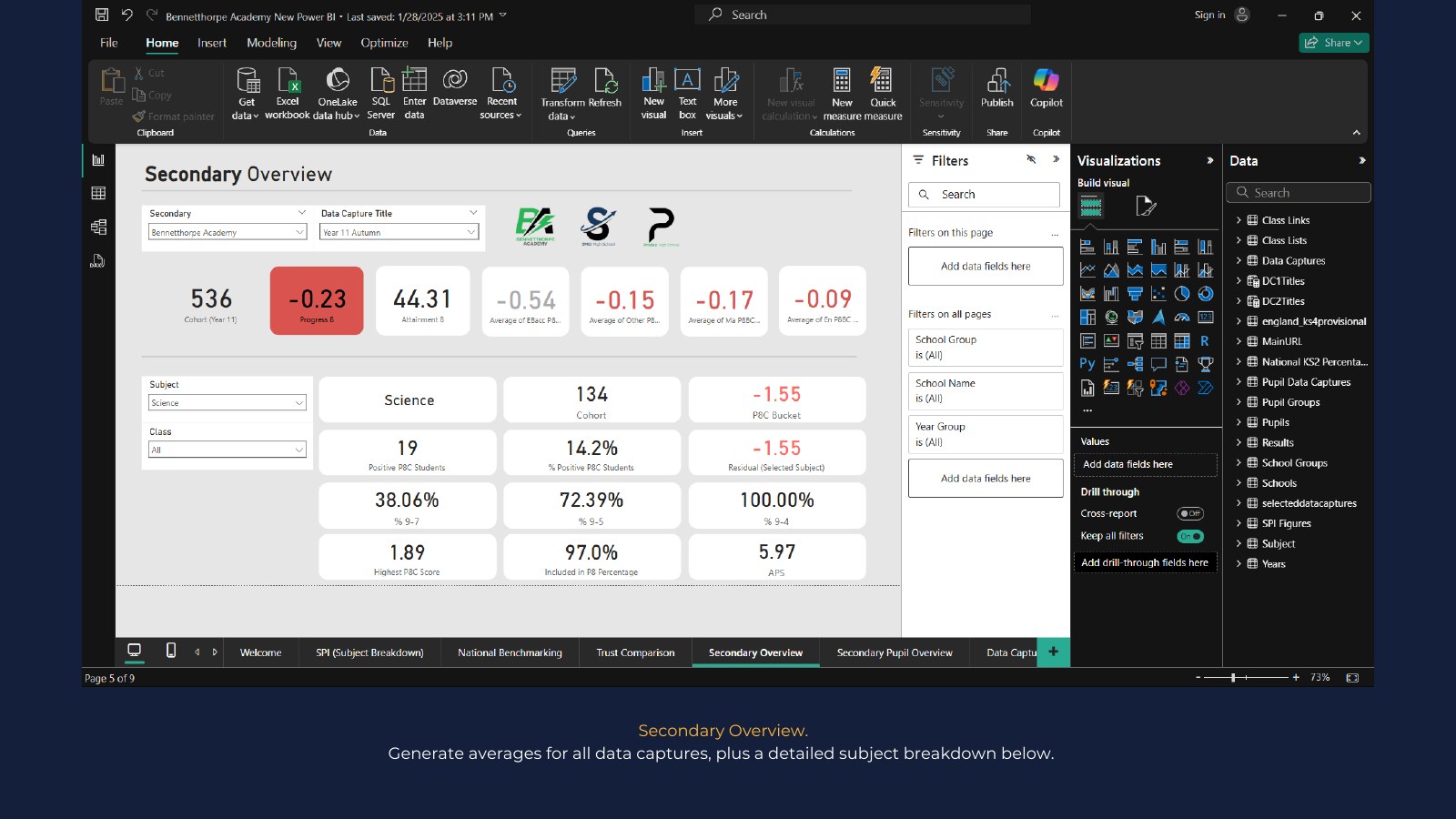
Browse all 15 pages from the example report. The data is fictitious, but the dashboards show the range of school, trust, pupil, subject, attendance and benchmarking views you can build.
Example Power BI report page 1: Example Power BI snapshots
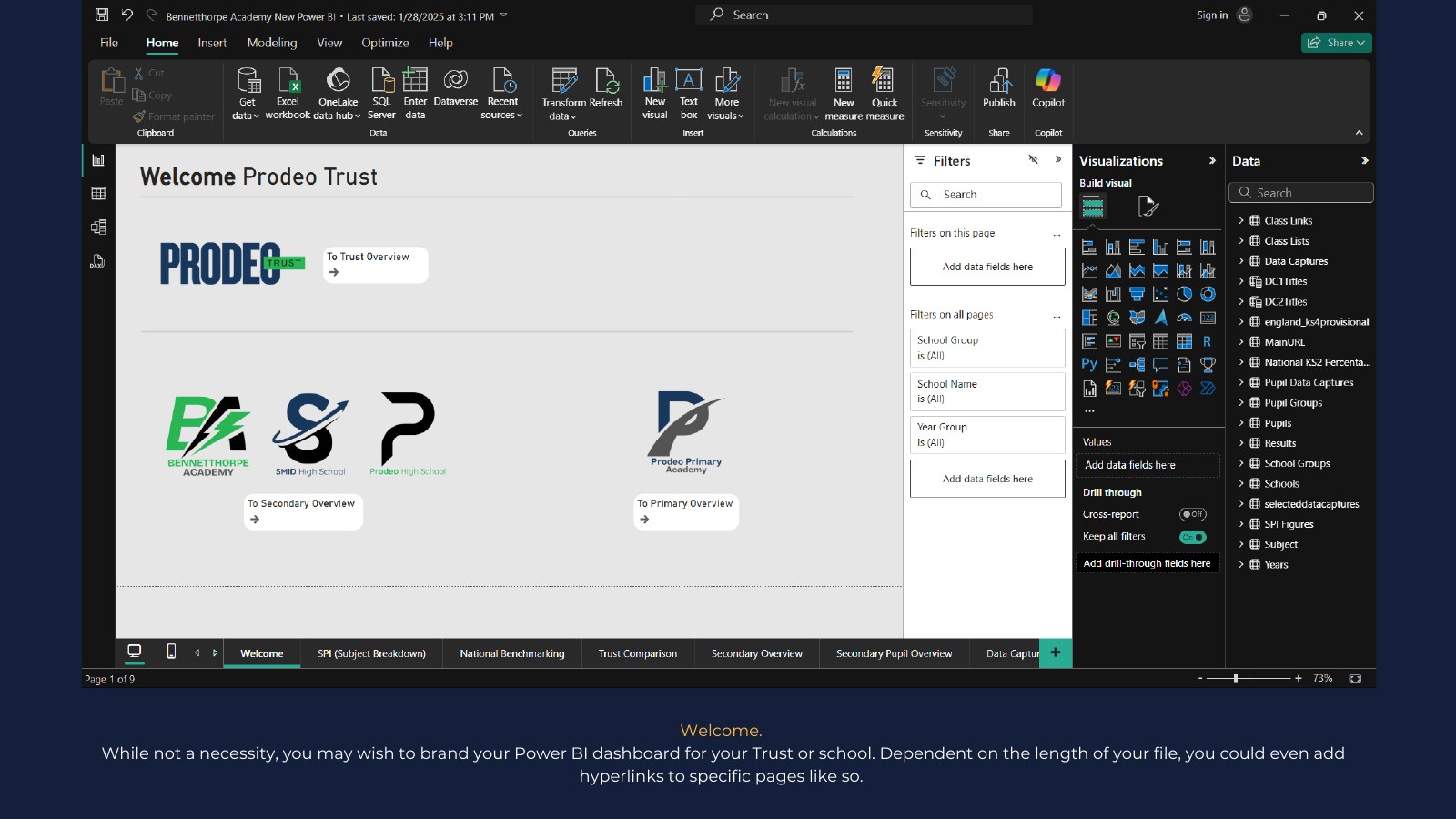
Example Power BI report page 2: Welcome and branding
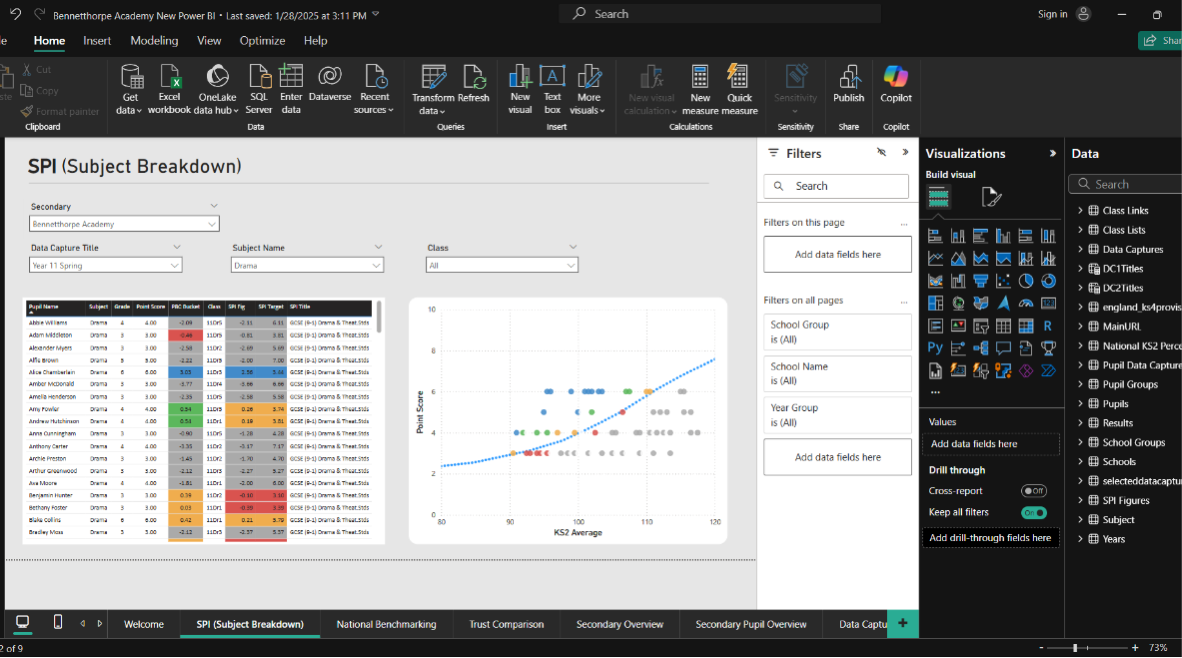
Example Power BI report page 3: Subject breakdown using SPI
Example Power BI report page 4: National benchmarking
Example Power BI report page 5: Trust comparison
Example Power BI report page 6: Secondary overview
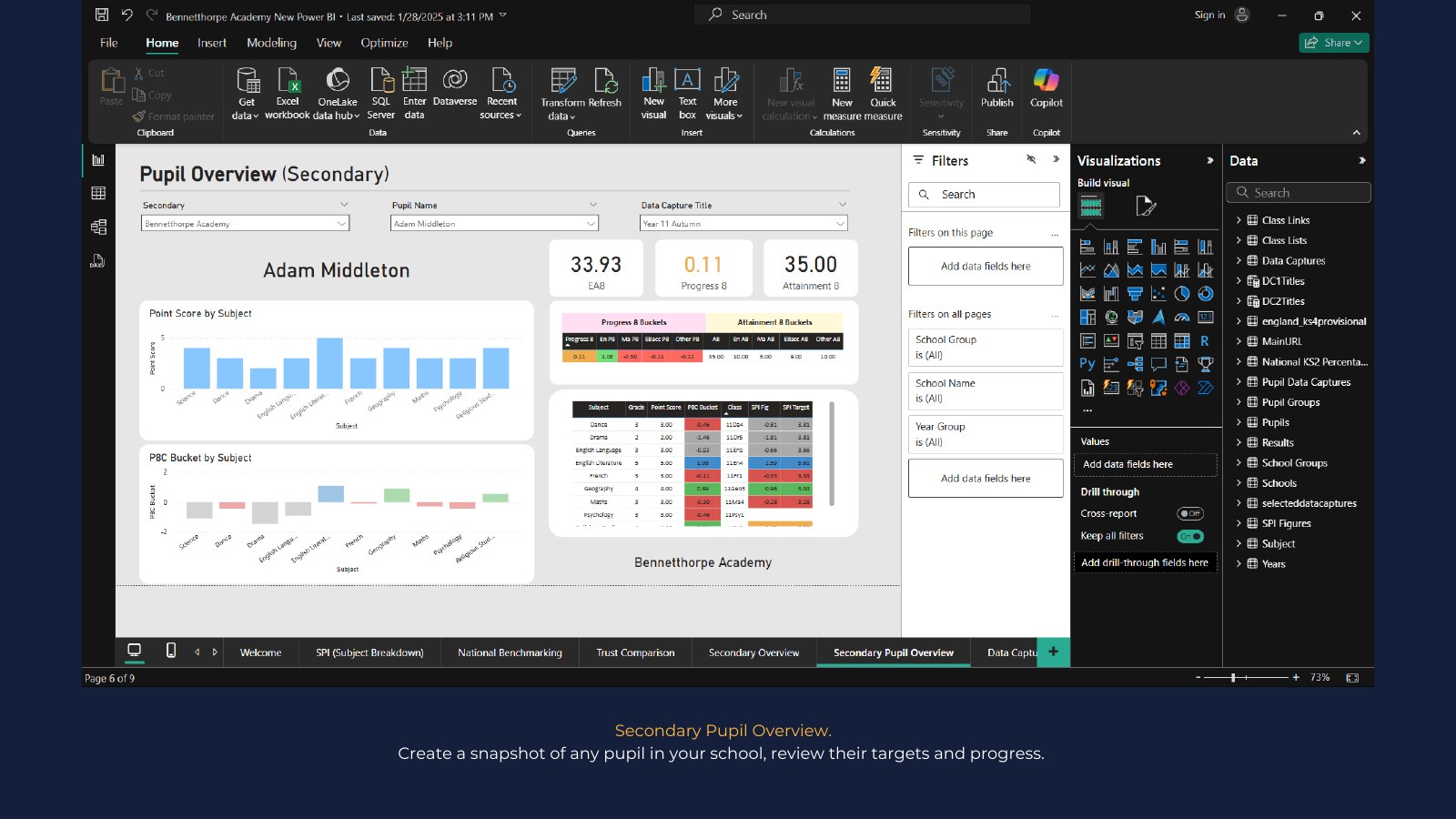
Example Power BI report page 7: Secondary pupil overview
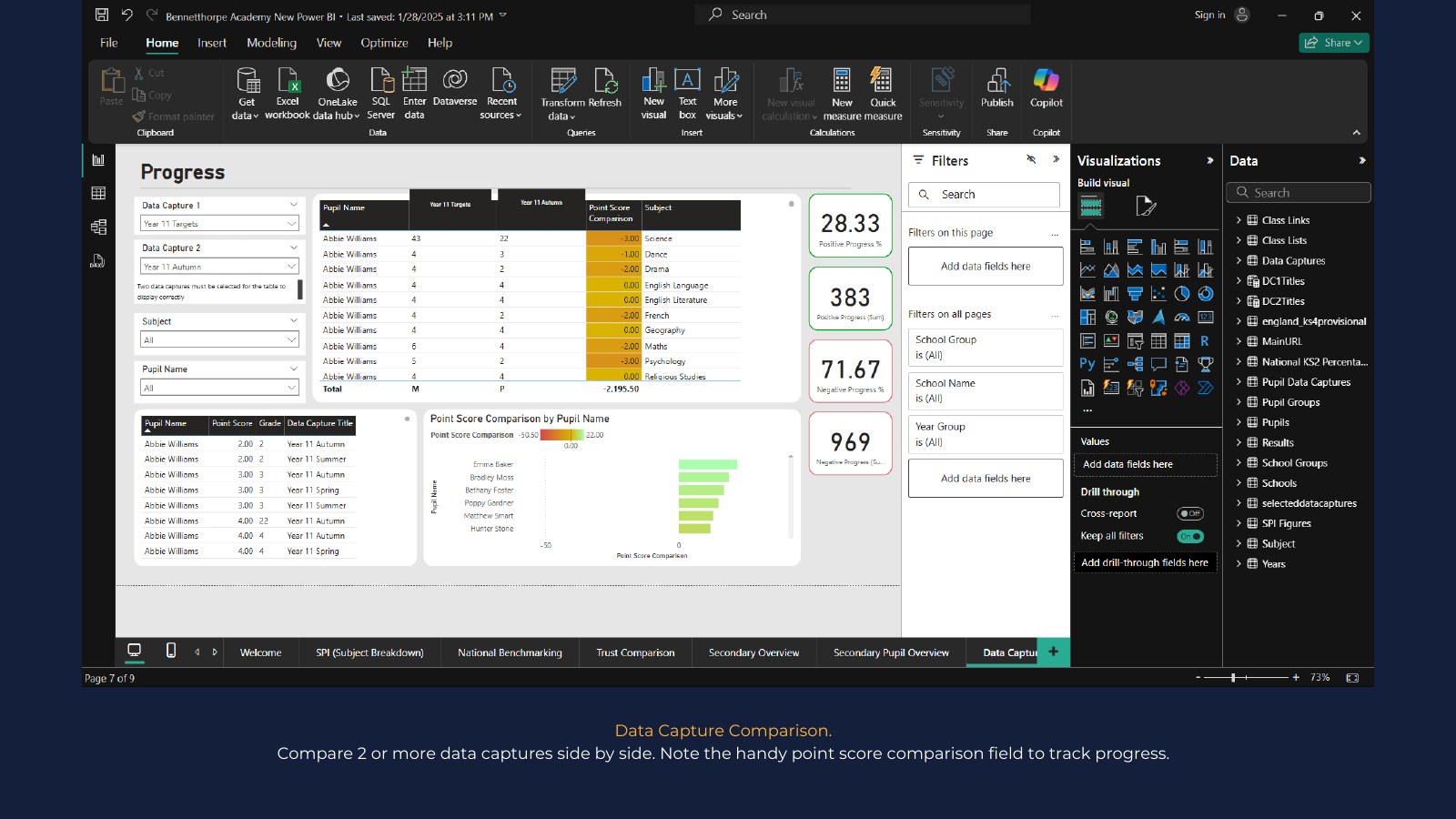
Example Power BI report page 8: Data capture comparison
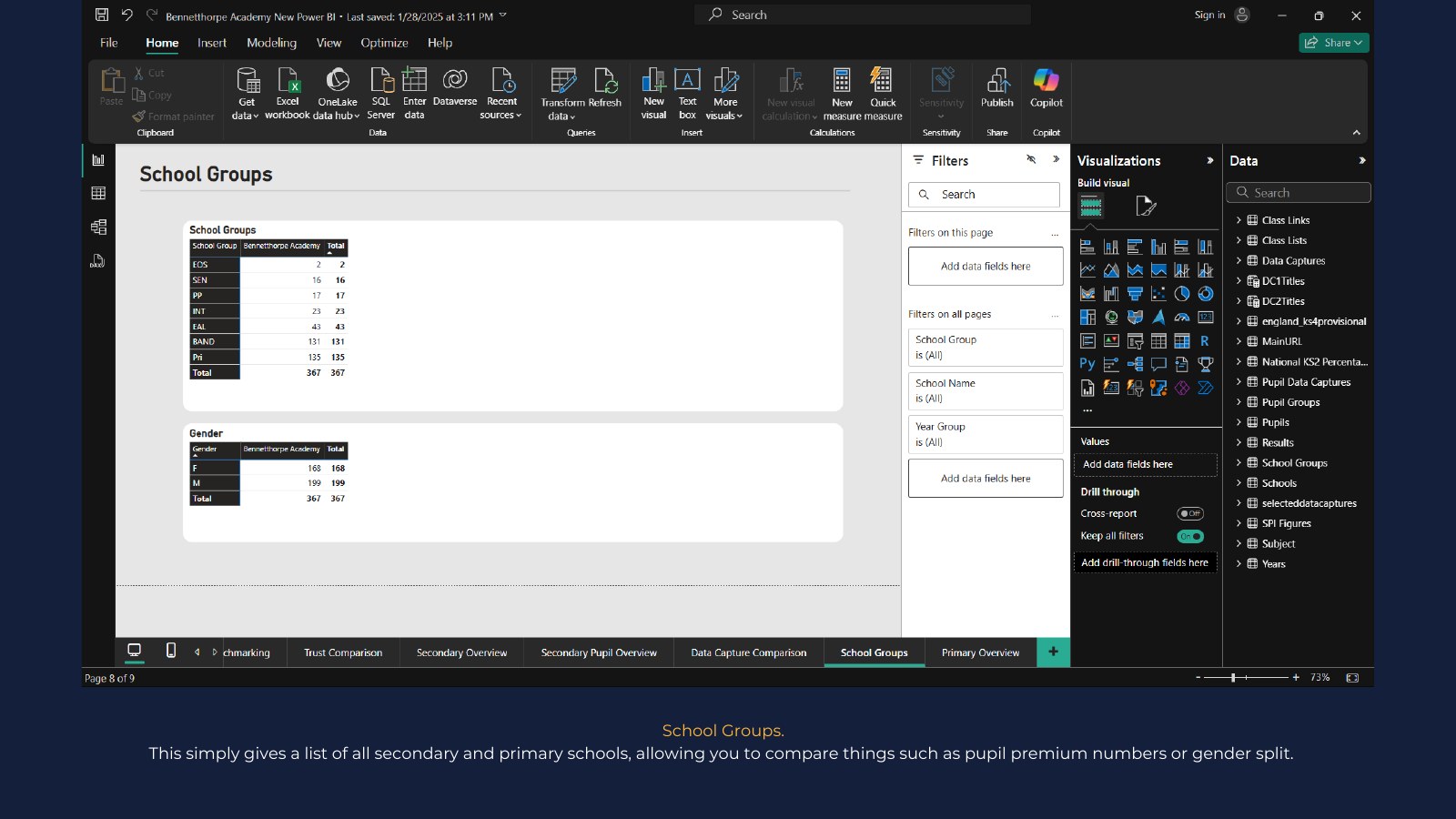
Example Power BI report page 9: School groups
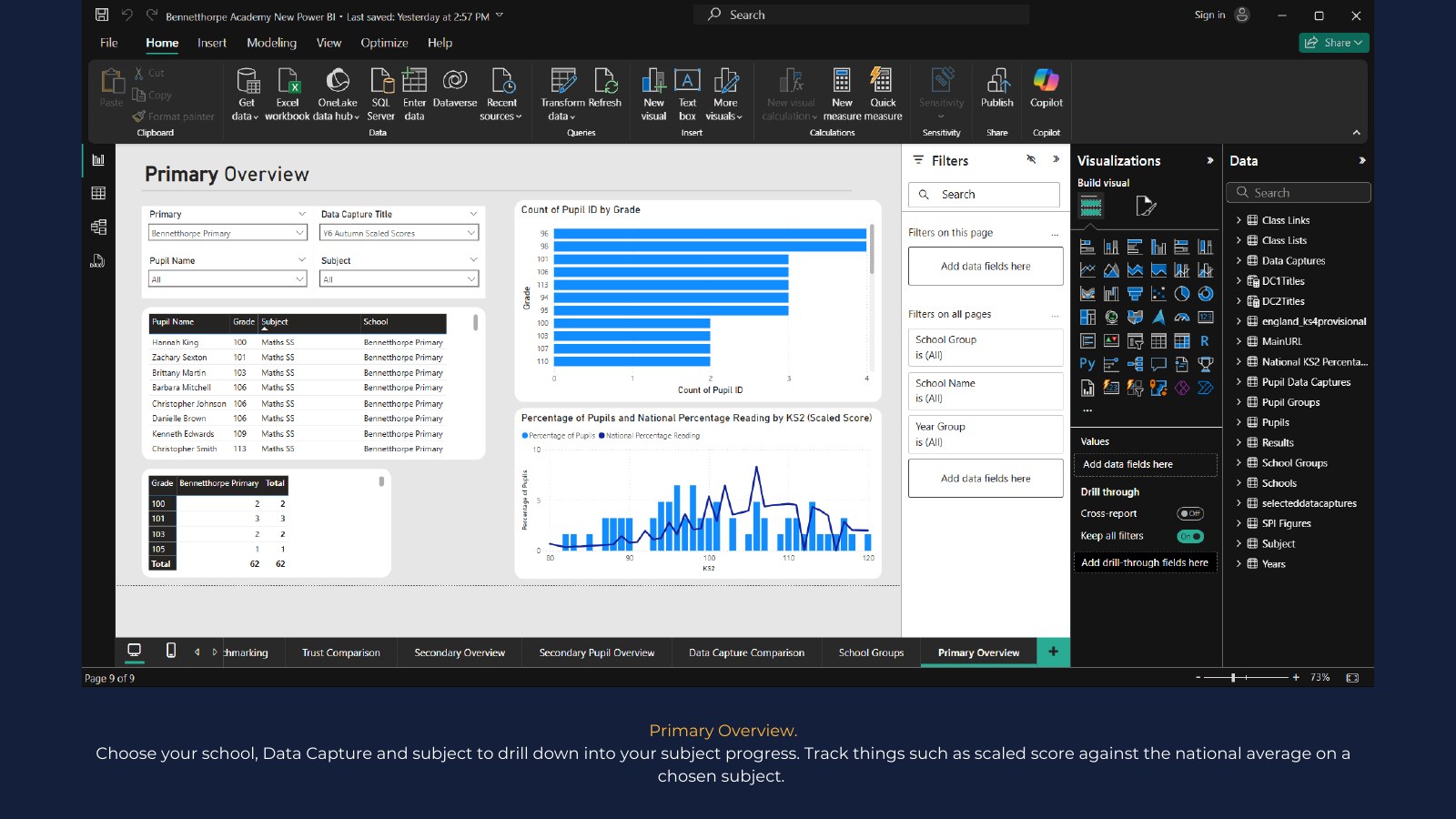
Example Power BI report page 10: Primary overview
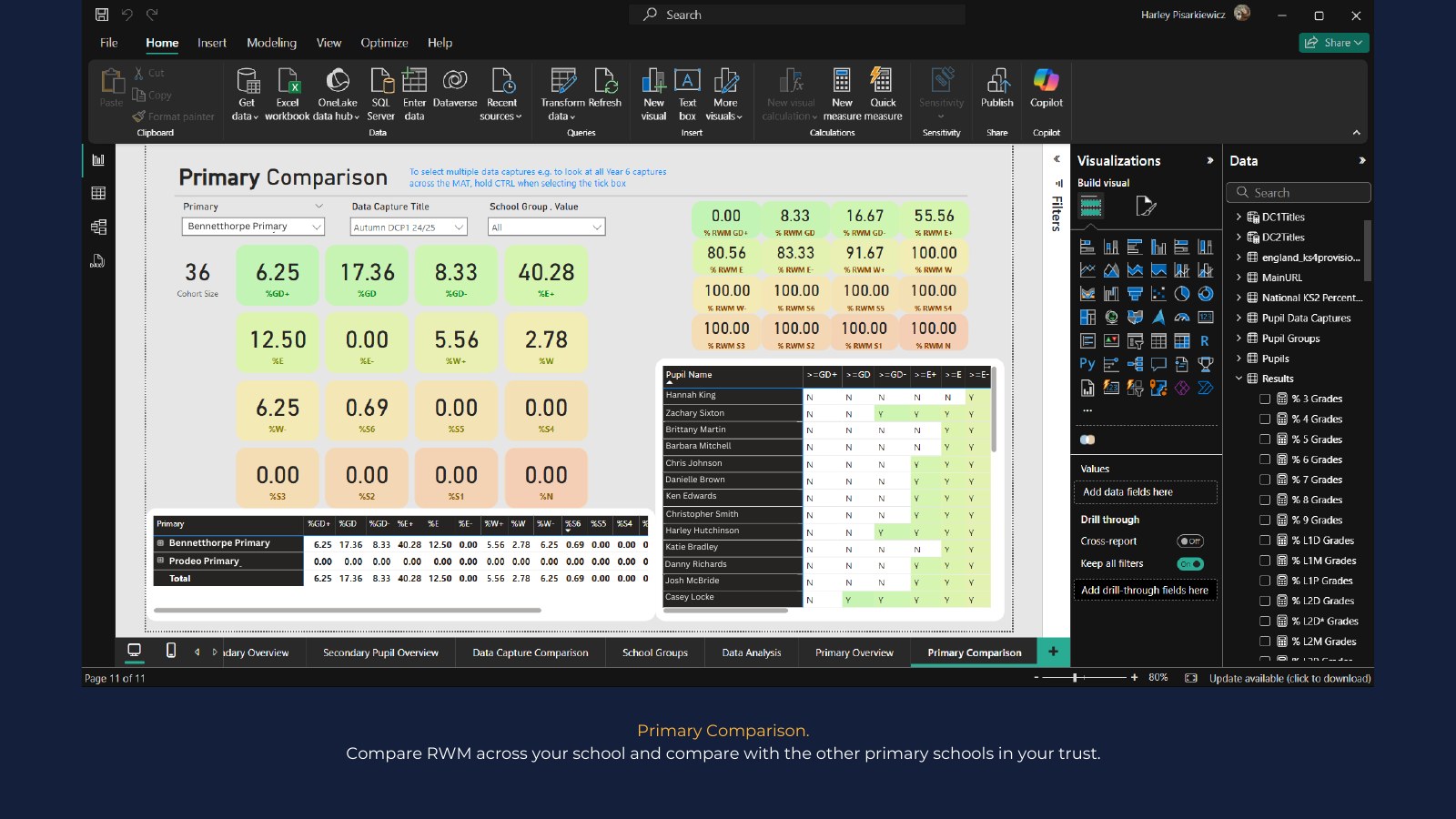
Example Power BI report page 11: Primary comparison
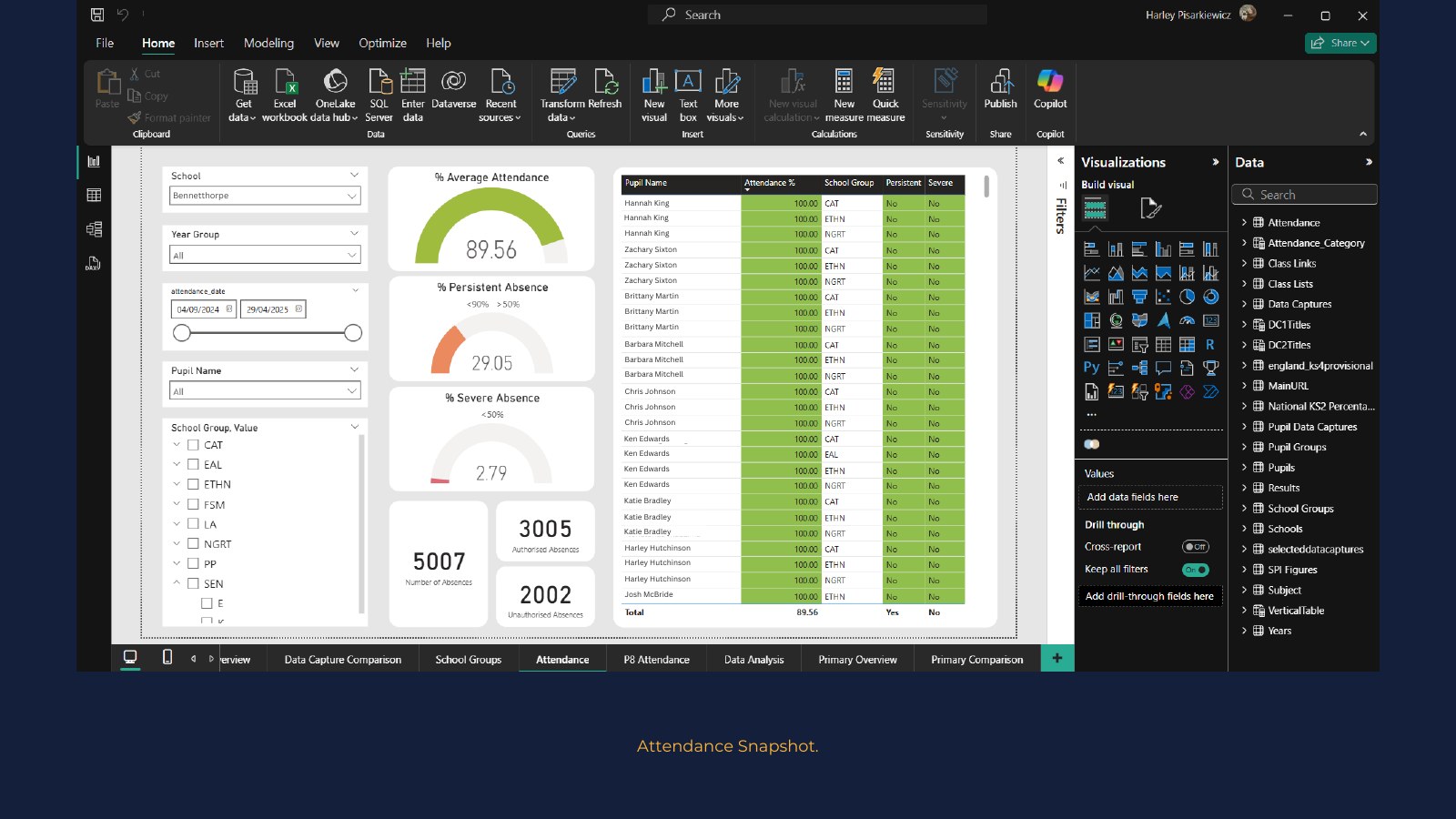
Example Power BI report page 12: Attendance snapshot
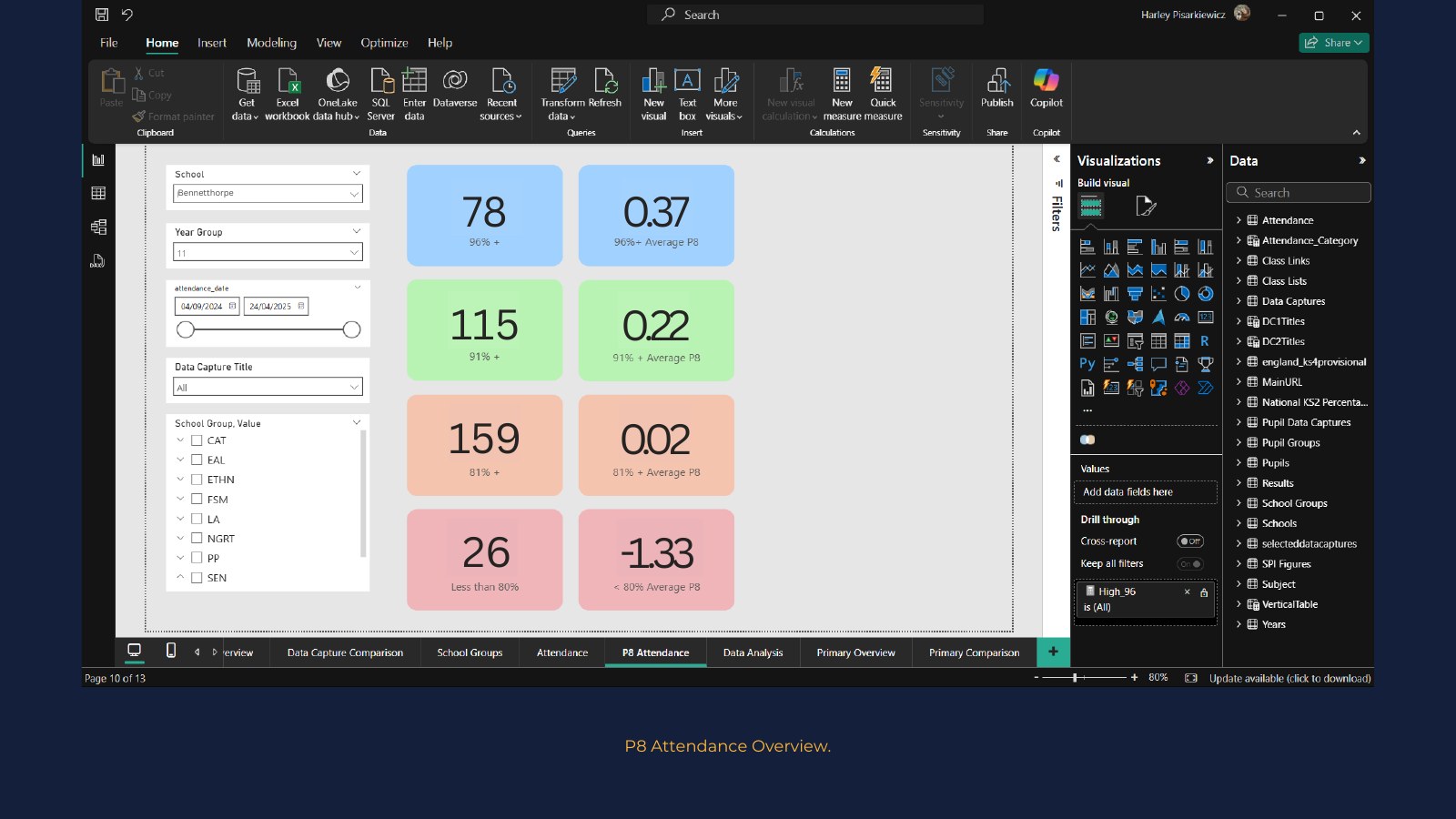
Example Power BI report page 13: P8 attendance overview
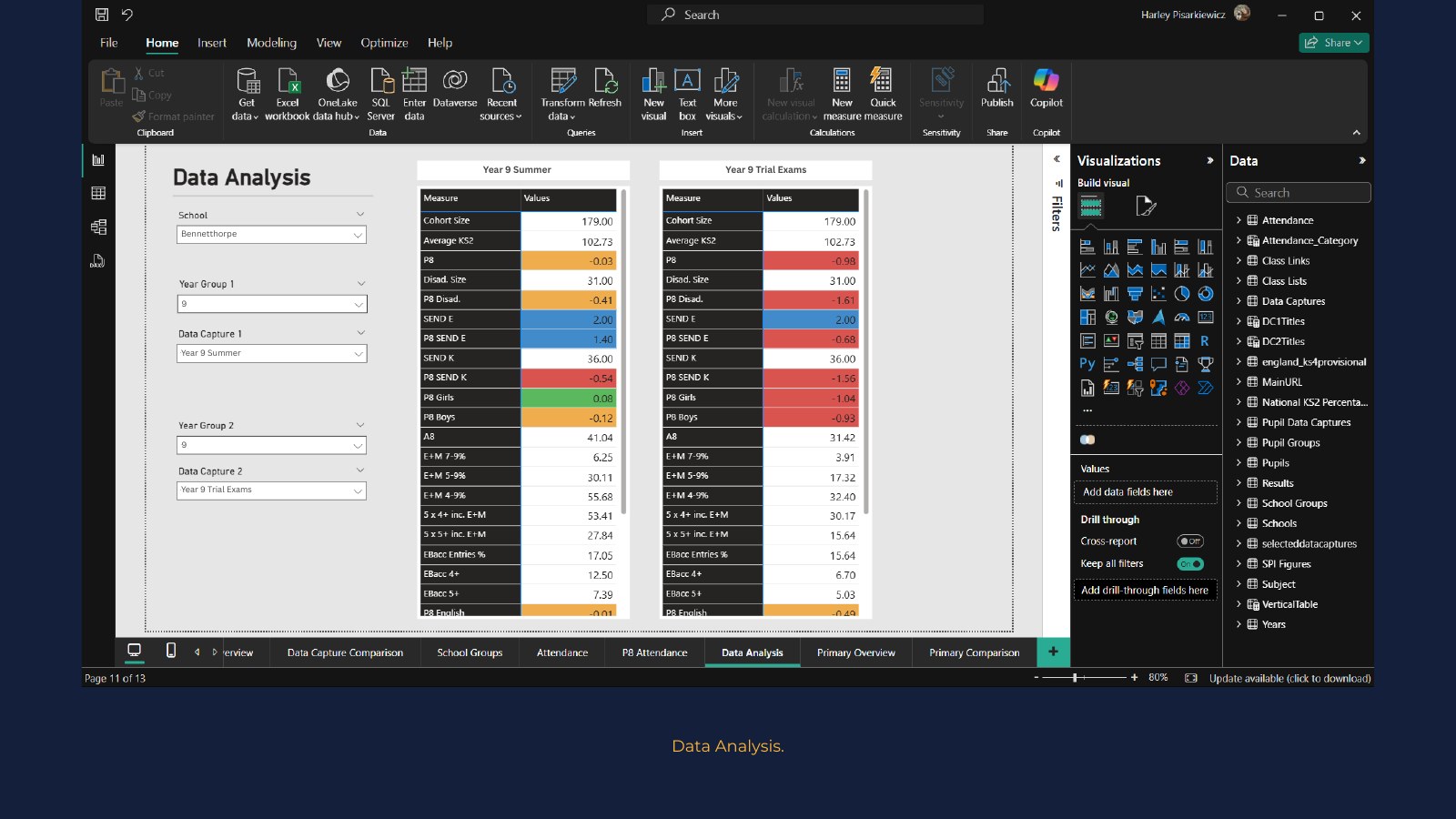
Example Power BI report page 14: Data analysis
Example Power BI report page 15: Built for your reporting
Page 1 of 15

Example Power BI snapshots

Fictitious data showing the range of dashboards and analysis that can be built.

Want to review every example offline? Open the complete example PDF ↗
Do not miss this step

Add the right Data Capture IDs.

Data Capture IDs tell the Power BI connection exactly which assessment snapshots to load. Add each required ID before refreshing so your chosen terms, year groups and comparison points are available.

  1. Find the ID in SMID. Open the relevant year group's Data Captures page and expand the capture you want to use.
  2. Add it in Power BI. Choose Transform data, open the Data Capture table and add the numeric ID as a new row.
  3. Apply and refresh. Save the table changes, apply the query updates and refresh the report.
Your browser does not support the video player. You can open the video directly instead.
How to add a Data Capture to Power BI 1 minute 25 seconds
Built around your reporting

Start with the example, then make it yours.

Use the supplied connections as a starting point, customise the report around your priorities, or ask SMID to collaborate with your school or trust.

Talk to SMID  →
SMID

Assessment, attendance, behaviour and reporting brought together in one connected school data platform.

ASCL Preferred Supplier CST Community Supporter

Contact

01302 239 060

info@smidreport.com

Hall Cross Cottage
5 Albion Place
South Parade
Doncaster
DN1 2EG

Website

Home About Us Meet the Team Testimonials Features England & Wales SMID-Gens SMID 6 Setup SMID Primary Contact More testimonials Power BI Live Sync

Next Steps

Book a demo →
in f X

2026 © SMID Report - PRODEO LTD - 06207746

Privacy Notice Terms of Service (Schools)
Sign in to SMID
SMID Primary, Secondary & Trust → TM Toolkit Transition Matrix Toolkit → Parents & Students Parents' Evening & Catch-Up →

View all testimonials →

Screenshot coming soon There is space here for a product screenshot or animated preview once you provide the image.

Key Benefits

    Use Cases

      Feature finder

      Search every SMID tool

      Search by a task, priority or tool name. Select a result to open its full overview.

      Popular searches
      No matching tools yet Try a broader phrase, or speak to SMID about the outcome you need.
      Find your SMID toolkit 1 of 4

      Where do you work?

      Four quick choices will help us match the most relevant SMID tools to you.

      1. 1 Setting
      2. 2 Role
      3. 3 Priority
      4. 4 Goal
      Trust & GDPR

      Compliance documents

      Access SMID's key information security, data processing and data governance documents.

      ↗ Information Security & Hosting Overview How SMID approaches platform security, hosting and resilience. → ↗ Data Processing Agreement Terms covering personal data processing for schools and trusts. → ↗ List of Sub-Processors Third-party processors involved in delivering the SMID service. → ↗ Data Retention & Deletion Policy How data retention, deletion and lifecycle processes are handled. →
      Video Guides